How to Migrate from Process Builder to Salesforce Flow: A Step-by-Step Guide
Migrating from Process Builder to Salesforce Flow means auditing your active processes, running them through the native Migrate to Flow tool where possible, manually rebuilding what the tool can't handle, testing in sandbox, and cutting over one object at a time — with the old process deactivated before the new Flow goes live.
If you're reading this in 2026 and you still have active Process Builder automations in your org, you're running on unsupported infrastructure. Salesforce officially ended support for Process Builder on December 31, 2025. That doesn't mean every process stops working overnight — but it does mean bugs won't get fixed, and platform updates can break things without a path to resolution.
This guide walks through exactly how to execute that migration cleanly.
Key Takeaways:
Process Builder support ended December 31, 2025 — existing processes may still run, but receive no bug fixes or Salesforce support.
Salesforce's native Migrate to Flow tool handles simple automations but leaves gaps that require manual rebuilds.
Record-triggered Flows run up to 10x faster than equivalent Process Builder processes, according to Salesforce Trailhead.
The migration is also an audit — retire what's obsolete, consolidate what overlaps, and don't just copy old debt into a new format.
Run Process Builder and Flow side by side on the same object for as little time as possible; deactivate the old process before activating the new Flow.
Why Process Builder Was Retired (and Why Flow Is Better)
Process Builder served its purpose for nearly a decade. Since its release in Spring '15, it gave admins a visual, layered way to automate record-based logic — more capable than Workflow Rules, and more accessible than Apex. But it had structural limits that couldn't be patched away.
According to Salesforce Trailhead, a record-triggered Flow can update a Salesforce record 10 times faster than an equivalent record-change process built with Process Builder. That alone makes the migration worth doing — but the gap is wider than raw speed.
Here's what Process Builder couldn't do that Flow handles natively:
Before-save execution. Process Builder ran only after a record saved, consuming DML operations for every field update. Flow can run before the record saves, modifying field values without touching your DML limits at all.
Error handling. When a Process Builder fails, the entire transaction rolls back with minimal debugging information — no way to catch errors and handle them gracefully. Flow includes fault paths, error screens, and transaction logs.
Complex logic. Process Builder was limited to basic branching and actions. Flow handles loops, variables, collections, decision trees, and subflows.
Delete triggers. Flow can trigger on record deletion — a capability Process Builder never had.
Bulk processing. Flow handles collections natively, making it far less likely to breach governor limits in high-volume scenarios.
Salesforce's decision wasn't arbitrary. Rather than maintain three separate automation paths — Workflow Rules, Process Builder, and Flow — they consolidated everything into a single modern engine. Flow now supports every use case those tools covered, and then some.
Step 1: Audit Every Active Process Builder Automation
Before you run any migration tool, you need a clear picture of what you're working with.
Go to Setup → Process Automation → Process Builder and sort by Status. Every active automation shows up there. From there:
Tag each process by object, criteria, actions, and dependencies. Export this into a spreadsheet. You need to know what fires, when, and on what record.
Identify conflicts. If multiple Process Builders fire on the same object, you likely have execution order issues that have been silently causing problems. Flag them.
Identify what can be retired. Not every process that exists should be migrated. If a process was built for a campaign in 2019 and that campaign is over, archive it — don't migrate it.
Flag complexity. Processes with multiple criteria nodes, invocable Apex calls, or cross-object field updates will need manual rebuilds. The native migration tool won't handle them cleanly.
At Inforge, we've found that most orgs discover redundant automations during this audit — processes that overlap, contradict each other, or simply no longer reflect how the business operates. The migration is the best forcing function to clean that up.
Step 2: Use the Migrate to Flow Tool for Simple Automations
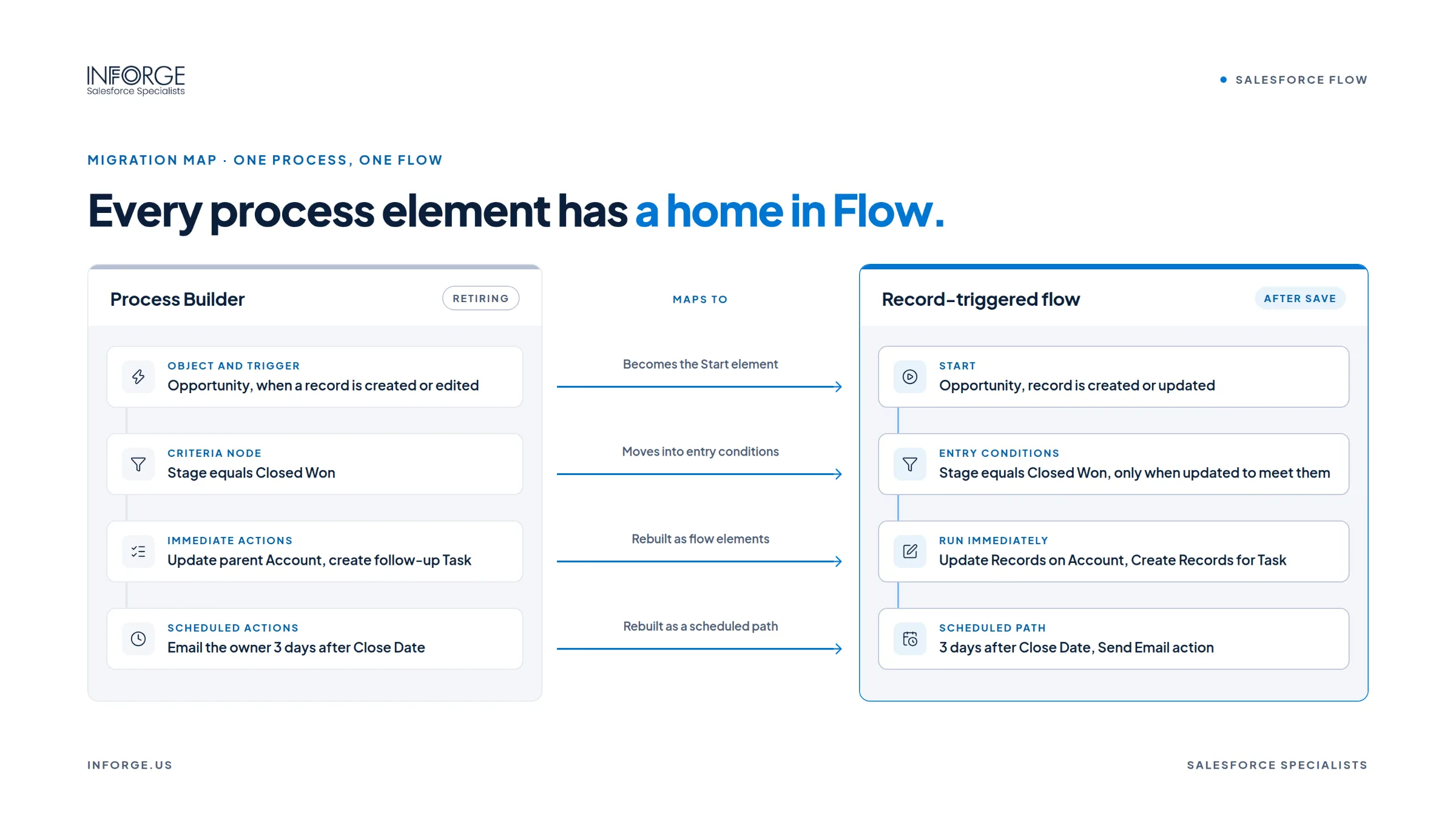
Salesforce provides a built-in Migrate to Flow tool that converts existing Process Builder processes into Flows, including criteria, actions, and scheduled actions.
To access it: Setup → Quick Find → "Migrate to Flow"
Select the processes you want to convert and click Migrate. Salesforce generates an equivalent Flow as a draft — ready for review, not activation.
What the tool handles well:
Field updates
Email alerts
Record creation
Invoke Flow and Invoke Apex
Outbound messages
Some time-based actions (when a single criteria node is selected)
What the tool does not handle (and where it silently fails):
Cross-object field references — these may be lost or require manual reconfiguration after migration.
Scheduled actions tied to multiple criteria — each outcome requires a separate flow built manually.
Processes with recursion — migrated versions evaluate only once, so test carefully.
Complex branching — multiple criteria nodes produce nested Decision elements that are difficult to maintain.
Tasks, some Chatter Posts, Quick Actions, Submit for Approval, and Custom Notifications all require manual configuration after migration.
One critical limitation: The tool converts each Process Builder one-to-one into a Flow. That means five Account Process Builders become five separate Account Flows — which violates Salesforce best practices. The recommended approach is consolidating to no more than three record-triggered flows per object (Before Save, After Save, Before Delete). The tool won't do that consolidation for you.
Treat every output from the Migrate to Flow tool as a first draft, not a finished product. Open each migrated Flow in Flow Builder, review the logic, fix naming inconsistencies, check for missing Decision elements, and add fault paths before you even think about activation.
Step 3: Manually Rebuild What the Tool Can't Convert
For any automation the tool flags as unsupported — or any complex process you choose to rebuild from scratch — the manual approach is actually the better one.
Here's how to think through it:
Split Before-Save from After-Save Logic
This is the most important structural decision in the rebuild. Use a before-save record-triggered Flow for any same-record field updates — it runs before the record hits the database, consumes no DML operations, and is significantly faster. Use an after-save Flow for everything else: related record creation, email alerts, Apex calls, and scheduled paths.
Mixing the two unnecessarily into a single after-save flow wastes system resources and creates the same inefficiencies you're trying to leave behind.
Consolidate Flows Per Object
If you had four Process Builders on the Opportunity object, the goal isn't four Flows — it's one before-save Flow and one after-save Flow (and a before-delete if needed). Use entry conditions within each Flow to handle the branching that used to live in separate Process Builders.
Use Subflows for Shared Logic
If the same logic appears in multiple Flows — for example, a standard notification or a field calculation that applies to several objects — build it as a reusable subflow. Call it from the parent Flows rather than duplicating the logic. This reduces maintenance overhead and makes future changes much simpler.
Handle Scheduled Actions Separately
If your Process Builder had a "wait" step — for example, sending an email three days after a field change — the Migrate to Flow tool will not convert it. You need to rebuild that logic as a Scheduled-Triggered Flow in Flow Builder with a Scheduled Path.
Add Fault Paths to Every Action
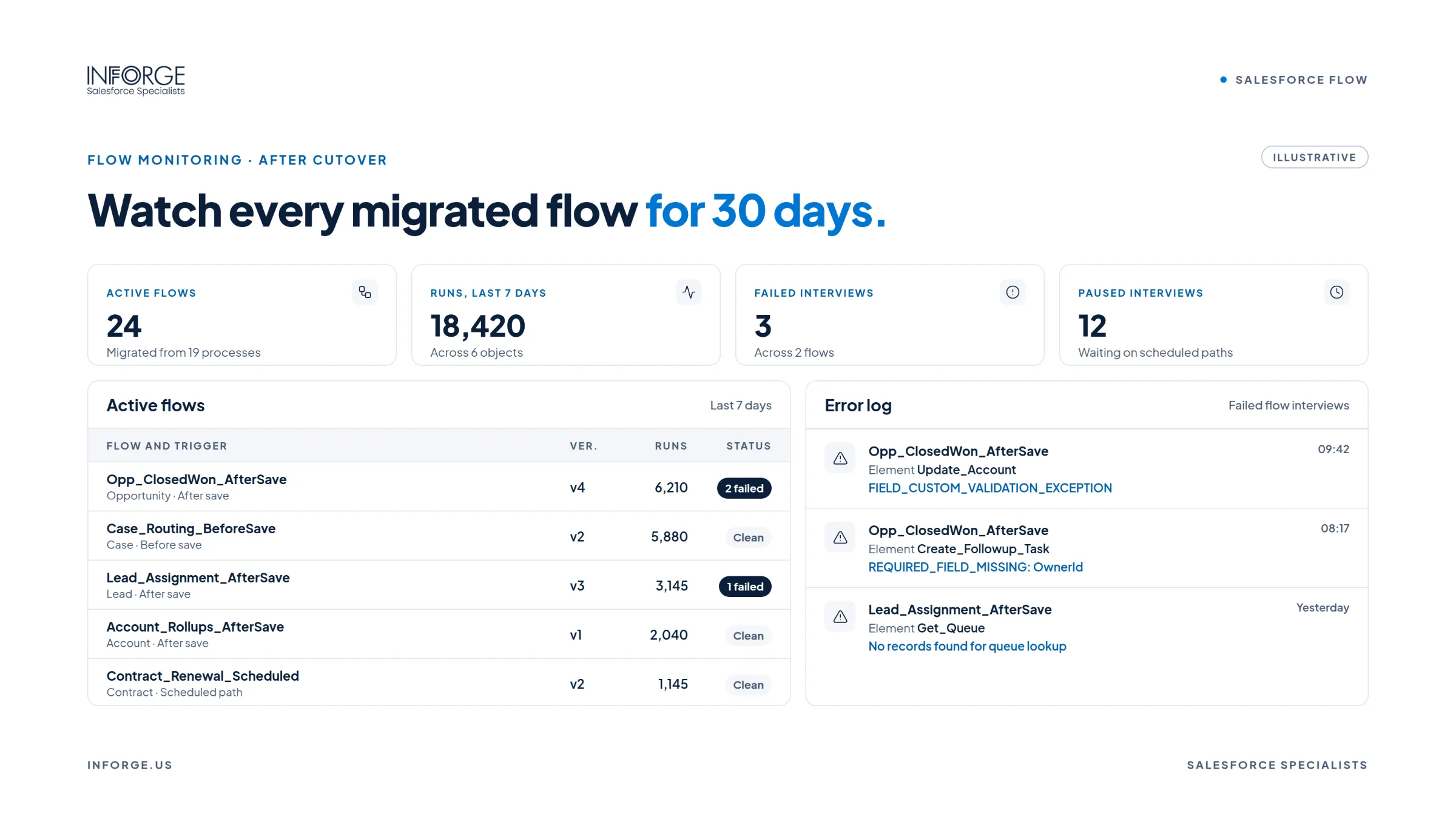
This is the most common post-migration mistake we see: flows that go live without fault paths. Add fault connectors to every email, task, and record update action. When something fails, you need to know about it immediately — not discover it weeks later through a support ticket.
Step 4: Test in Sandbox Before Touching Production
Never activate a migrated or rebuilt Flow directly in production. The testing sequence matters:
1. Activate the Flow in a full sandbox that mirrors your production data and configuration.
2. Use the Flow Debugger built into Flow Builder to step through the logic with a real record. Validate every decision branch, not just the happy path.
3. Test bulk scenarios — trigger the Flow on 200 records simultaneously to confirm it stays within governor limits. A Flow that works on one record can fail at scale if it's structured poorly.
4. Verify that the Process Builder is deactivated before the Flow goes live on the same object. Running both simultaneously on the same object creates unpredictable execution order and is the single most common cause of migration-related incidents.
5. Run a parallel period where possible — keep the old process deactivated but available to reactivate if a critical issue surfaces in the first 48–72 hours after cutover.
Step 5: Activate, Monitor, and Optimise
Once testing is clean, go live — one object at a time, not all at once.
Activation sequence:
1. Deactivate the Process Builder for the object.
2. Activate the new Flow.
3. Monitor Flow usage via Setup → Flows and the Flow Error Email settings.
4. Check the Apex Jobs and scheduled actions to confirm scheduled paths are firing as expected.
Optimisation after go-live:
Use Salesforce Optimizer or the Flow Analysis Tool to identify performance issues in deployed Flows — specifically, any flows that are triggering more DML operations than necessary or running in contexts where a before-save approach would be faster.
Replace any hard-coded record IDs or user IDs with Custom Labels or Custom Metadata. Hard-coded IDs break when records are deleted or when you deploy to a different org. This is migration debt that compounds over time — clean it during the rebuild.
Set a regular audit cadence — quarterly works for most orgs — to identify Flows that have become obsolete, overlap with newer automations, or are candidates for consolidation.
Managed Packages and Third-Party Automations
One area that catches teams off-guard: managed package automations are not yours to migrate.
Workflow Rules and Process Builders inside managed packages are maintained by the package vendor and cannot be directly edited by your admins. Salesforce has stated that vendors are responsible for updating their automations and transitioning them to Flow Builder. That means your path forward is to contact the vendor, check AppExchange release notes, and confirm their migration timeline — not attempt to convert those processes yourself.
For any ISV-owned automation in your org, the question to ask is: "Has this vendor committed to a Flow migration, and by when?" If the answer isn't documented, escalate it.
Summary
Migrating from Process Builder to Salesforce Flow is not a lift-and-shift. The Migrate to Flow tool gives you a starting point for simple automations, but complex logic requires a manual rebuild — and the migration itself is the best opportunity you'll get to retire automation debt and consolidate overlapping processes. The result, when done right, is a faster, more maintainable, more debuggable automation layer that's aligned with where Salesforce is investing. At Inforge, we run Salesforce implementations entirely through AI-assisted delivery, and the automation layer is always one of the highest-leverage areas we touch — getting this migration right compounds over every future change to the org.
Frequently Asked Questions
Q: Will my existing Process Builder automations stop working after December 31, 2025?
A: Not immediately. Existing Process Builders may continue to execute after the support deadline, but Salesforce will no longer provide bug fixes or customer support for them. Any platform update could break them without a resolution path, making continued reliance on them a genuine operational risk.
Q: Can I use the Migrate to Flow tool for all my Process Builders?
A: For simple, single-criteria processes with field updates, email alerts, and record creation, yes — the tool works. For processes with cross-object references, multiple criteria nodes, scheduled actions tied to multiple outcomes, or invocable Apex with pauses, you'll need to manually rebuild. Treat every tool output as a draft that requires review before activation.
Q: How many Flows should I have per object?
A: Salesforce best practices recommend no more than three record-triggered Flows per object — one Before Save, one After Save, and one Before Delete if needed. Use entry conditions within each Flow to handle branching logic, rather than creating separate Flows for each scenario.
Q: What's the biggest mistake teams make during Process Builder migration?
A: Running Process Builder and the new Flow simultaneously on the same object. This creates unpredictable execution order and is the most common cause of data issues post-migration. Deactivate the Process Builder before activating the equivalent Flow.
Q: How long does a full migration take?
A: It depends heavily on the number of active automations and their complexity. Simple orgs with 10–20 processes can complete migration in a few days. Orgs with hundreds of processes across many objects typically require several weeks of structured work — including the audit, rebuild, testing, and phased activation. [INSERT STAT: Salesforce Admin Community or Salesforce Ben migration timeline benchmarks]
Ready to Get Your Automation Stack Migration-Ready?
At Inforge, we deliver full Salesforce implementations entirely through AI-assisted delivery — faster timelines, more consistent quality, and a fraction of the traditional cost. If your org is carrying Process Builder debt and needs a clean path to a modern Flow architecture, we can scope and execute that migration efficiently.
[Get in touch with Inforge to discuss your Process Builder migration →]