How to Migrate from HubSpot to Salesforce Without Losing Data: Step-by-Step Guide
Migrating from HubSpot to Salesforce is not a data transfer problem — it is a business-continuity problem. Get the field mapping wrong and your pipeline history disappears. Import records out of sequence and you get orphaned contacts with no company associations. Rush the data audit and you carry dirty, duplicate records straight into your new CRM. Done right, a HubSpot to Salesforce migration sets your team up for years of scalable growth. Done wrong, it costs far more than the migration itself.
Quick Answer: A successful HubSpot to Salesforce migration follows six sequential steps: pre-migration audit, data cleanup and backup, field mapping, Salesforce environment setup, phased data import, and post-migration validation. Skipping or compressing any of these steps — especially the audit and mapping phases — is the primary cause of data loss and post-launch rework.
Key Takeaways:
The data audit is the step most migration timelines skip. It is also the most consequential.
HubSpot and Salesforce use fundamentally different data models. Contacts, Companies, and Deals in HubSpot map to Leads/Contacts, Accounts, and Opportunities in Salesforce — but the logic behind those objects is not equivalent.
Import sequence matters. Companies must be created before Contacts, which must exist before Deals. Import out of order and you will have orphaned records.
Dirty data migrated is dirty data in Salesforce. Clean it at the source — not after it is already causing problems in production.
A parallel run period of 15 to 30 days is standard practice for validating data integrity before decommissioning HubSpot.
Why Companies Migrate from HubSpot to Salesforce
The typical path is clear: companies start on HubSpot Sales Hub, then migrate to Salesforce Sales Cloud when HubSpot can no longer support their growth requirements. The trigger points are consistent — enterprise deals demand more process control, reports fall short, and automations require constant workarounds.
Salesforce gives you deeper customization through custom objects, Apex programming, and sophisticated workflow automation that includes approval workflows and conditional logic — capabilities designed for complex sales cycles that HubSpot's model does not replicate natively. Salesforce also provides a more comprehensive integration environment through its AppExchange marketplace and robust APIs, which is essential for organizations that need to connect with ERP systems, advanced BI tools, and a broader spectrum of third-party platforms.
The decision is valid. But the execution is where most organizations get into trouble. [INSERT STAT: Gartner CRM implementation failure rate report]
Step 1: Run a Pre-Migration Audit
Before a single record moves, you need to know exactly what you are working with. This is the step most migration timelines cut short because it adds two to three weeks to the project. Those weeks pay for themselves within the first quarter of Salesforce deployment.
Start by inventorying every HubSpot object: contacts, companies, deals, tickets, workflows, campaigns, reports, dashboards, and active integrations. Nothing should be assumed — document it all. Then define your scope. Not every record needs to make the trip. Decide what goes to Salesforce, what gets archived, and what gets left behind entirely.
Specifically audit for:
Duplicate rate. A healthy B2B database runs a 3–7% duplicate contact rate. Enterprise HubSpot instances commonly run 15–25%. Migrating duplicates produces double-counted contacts in lists, inflated MQL numbers, and incorrect lead scoring because both records accumulate partial engagement history.
Orphaned records. Every contact not associated with a company in HubSpot will arrive in Salesforce as an unassociated contact. If more than 15% of your contacts fall into this category, that is a remediation project that needs to happen before migration, not after.
Custom objects and properties. Identify every custom HubSpot property and determine its equivalent Salesforce field. Some HubSpot-specific features — certain activity histories, engagement records, or custom objects — have no direct Salesforce equivalent. Forcing them across often creates more problems than it solves.
Active integrations. Document key integration points that will need recreation or replacement. These often hold surprises during the actual migration.
Step 2: Clean Your Data Before It Moves
Dirty data migrated is dirty data in Salesforce. Clean it at the source. This is not negotiable.
Merge duplicate records, remove outdated contacts, and archive anything incomplete or irrelevant. Standardize formats across phone numbers, addresses, and picklist values so nothing breaks on arrival. Importing unsubscribed or bounced contacts will damage email deliverability performance, while bringing over non-compliant records creates legal risk under GDPR, CCPA, and similar frameworks.
For compliance-sensitive data: audit opt-in status and data origin for all records before migrating. Involve your legal or compliance team early if your audience spans multiple regions. A single compliance error post-migration can expose the business to fines and reputational risk that far exceeds the cost of the migration itself.
Once data is clean, back everything up. Export your full HubSpot dataset as CSV and store it securely — no exceptions. If a field gets mapped incorrectly, or a batch of records goes missing during the import, you need a way to recover. Skipping this step puts your team at risk of permanent data loss.
Step 3: Build Your Field Mapping Document
Field mapping is where migrations get complicated — and where the most data gets lost.
HubSpot and Salesforce were built on fundamentally different assumptions about how people move through a funnel. In Salesforce, a Lead is converted into a Contact that links to an Account and optionally an Opportunity. HubSpot does not use that conversion flow — Contacts, Companies, and Deals exist independently, with flexible associations rather than enforced relationships.
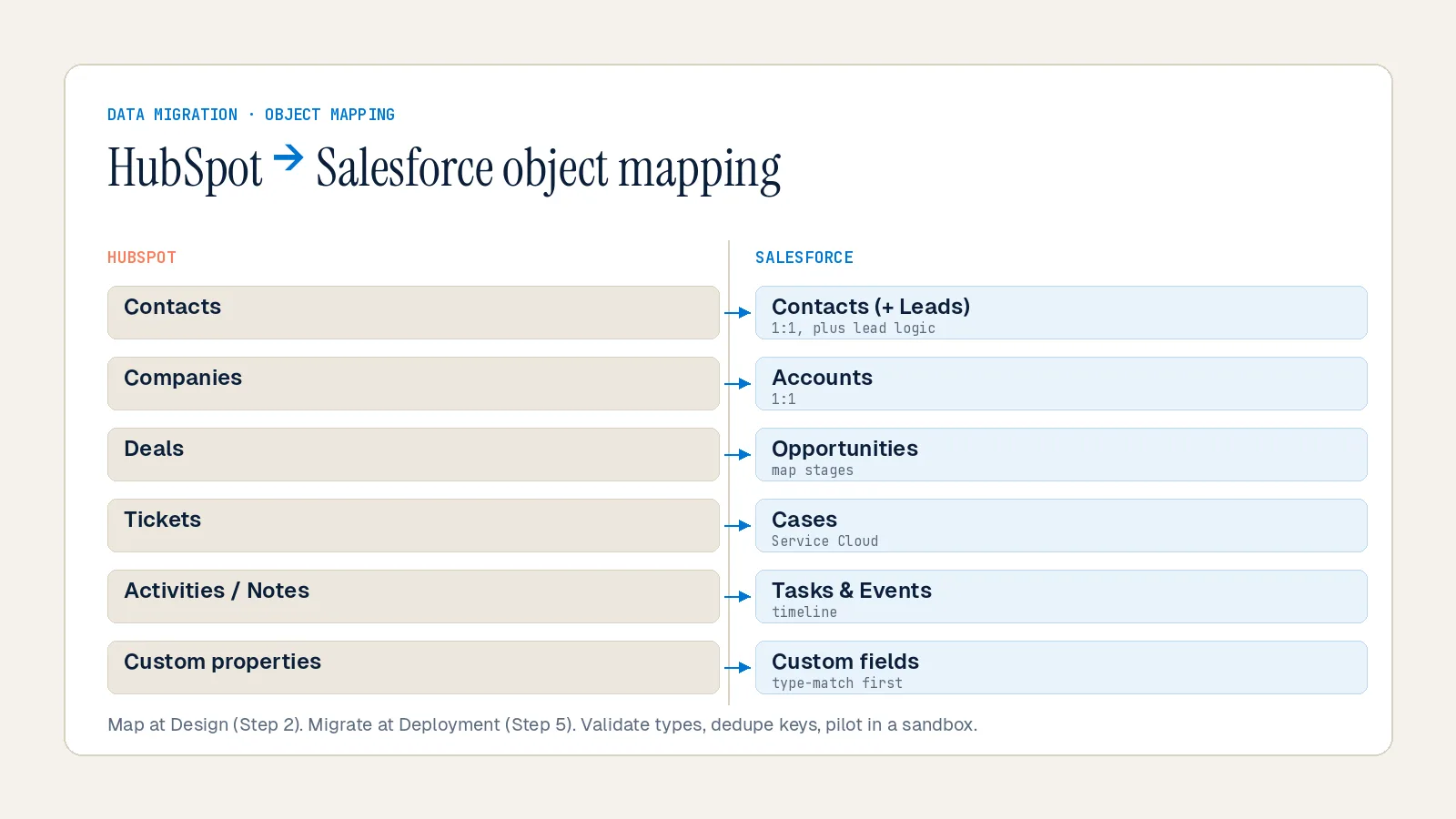
The core object mapping looks like this:
| HubSpot Object | Salesforce Object |
|---|---|
| Contact | Lead → Contact (post-conversion) |
| Company | Account |
| Deal | Opportunity |
| Ticket | Case |
| Engagement (email, call, meeting) | Task / Activity |
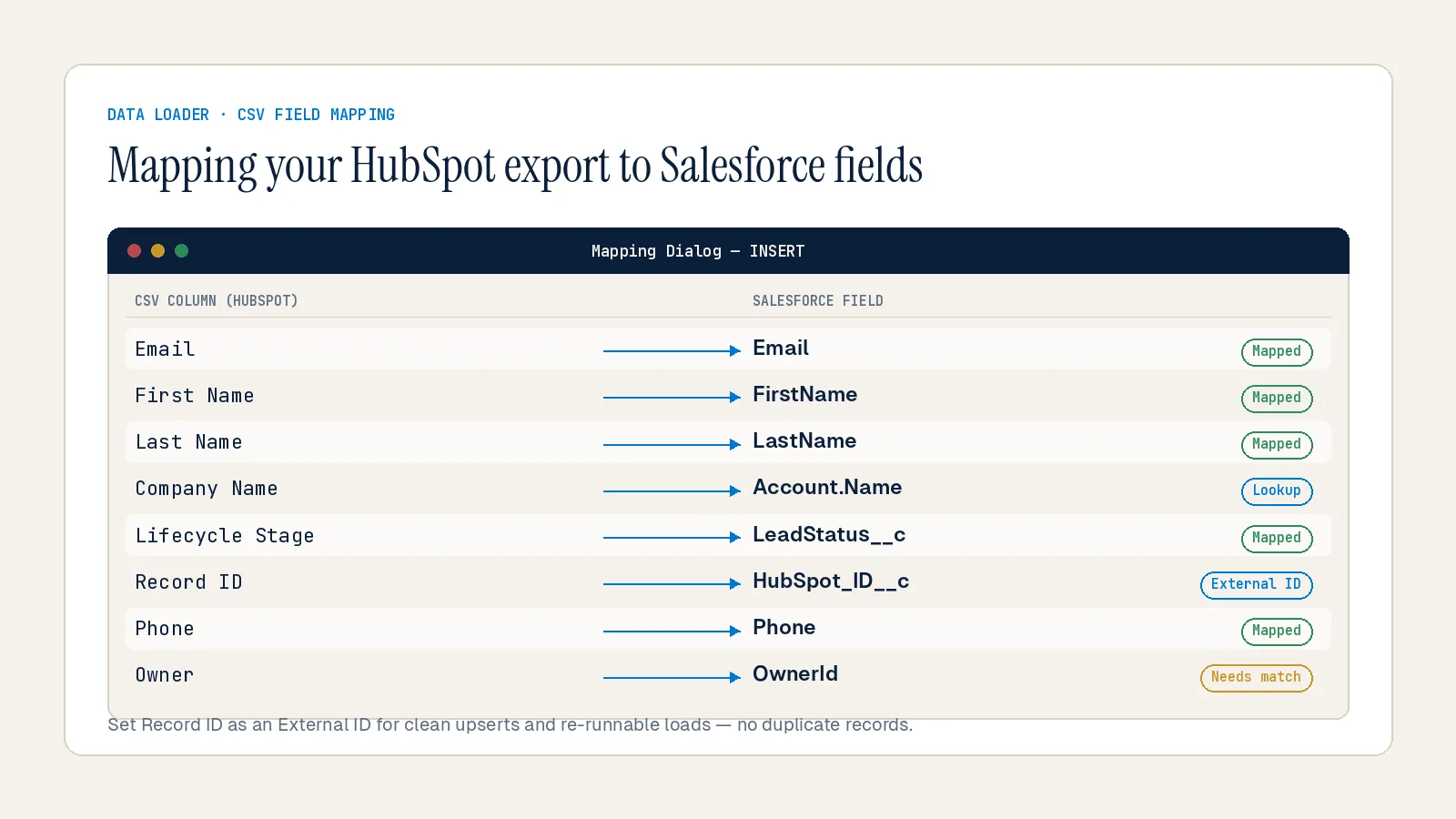
Build a dedicated mapping document and work through it carefully. Match every HubSpot property to its Salesforce equivalent. Note field types, character limits, and any transformations needed. Salesforce is stricter than HubSpot about data formatting — especially with picklists and required fields.
Critical mapping decisions to resolve before import:
Lifecycle stage vs. Lead Status. HubSpot keeps the same Contact record and updates the lifecycle stage as it moves from Lead → MQL → SQL → Opportunity → Customer. Salesforce uses Lead Status while a record is a Lead, then tracks progression at the Opportunity level after conversion. These are not the same field. Trying to map them directly creates bad data that neither Sales nor Marketing trusts.
Custom fields. Create all required Salesforce custom fields before any data moves. Do not try to create fields mid-import.
HubSpot ID preservation. Store the original HubSpot record ID in a custom Salesforce field on each core object (Contact, Account, Opportunity). This becomes your audit trail — it lets you troubleshoot data mismatches post-migration without guesswork and supports bidirectional troubleshooting if needed.
Step 4: Configure Your Salesforce Environment
Before any data moves, set up the Salesforce environment to receive it correctly. A migration into an unprepared org will break associations and create cleanup work that takes longer than the migration itself.
Environment setup checklist:
Create all custom fields and objects required to map HubSpot data
Add all users and configure permissions — the integration user requires Modify All access on every object you plan to sync
Set up page layouts so migrated fields are visible to the right user profiles
Configure lead assignment rules and round-robin logic (Salesforce does not include a native round-robin function — decide before go-live whether you will use a workflow, a third-party tool, or another approach)
Set up a Salesforce Sandbox for test migrations before touching production
Disable any integrations that will be affected by incoming data — an active third-party sync running during import can create duplicate records and make validation extremely difficult
Step 5: Execute the Import in the Correct Sequence
Import sequence is not optional. Objects must be created in Salesforce before the records that depend on them. Import out of order and you will have orphaned records — contacts with no associated accounts, deals with no associated contacts.
The correct import sequence is:
1. Users — Ensure all record owners exist in Salesforce before importing records assigned to them. Salesforce requires every record to have an owner. If an unassigned HubSpot record syncs to Salesforce and a new record is created, its owner will default to the integration user.
2. Accounts (Companies) — Import these first so Contacts and Opportunities can be associated correctly on import.
3. Contacts — Import after Accounts. Match records using email addresses. Note: with the native HubSpot–Salesforce integration, Salesforce Leads are mapped into HubSpot Contacts, not a Lead-to-Lead match.
4. Opportunities (Deals) — Import after Contacts and Accounts exist. Salesforce Opportunities are analogous to HubSpot Deals and by default can be created at the same time a Lead is converted.
5. Cases (Tickets) — Import support records after core CRM objects are in place.
6. Tasks and Engagements (Activities) — Import last. Activity history tied to converted Leads is particularly complex — Salesforce's Lead-to-Contact conversion model does not map directly to HubSpot's unified Contact object, and activity associations can break if the import sequence is not followed.
Migration method options:
CSV Export + Salesforce Data Loader or Import Wizard: Cost-effective for smaller datasets. Requires significant manual effort and carries a higher risk of data errors. The Data Import Wizard works best for Contacts, Leads, and Accounts; Data Loader handles larger, more complex datasets. For best results, import in batches rather than single bulk transfers.
Native HubSpot–Salesforce Integration: Works well for gradual team rollouts where both systems run in parallel, extended user acceptance testing, and organizations wanting to validate data mapping incrementally. Note that when importing leads or contacts from Salesforce via the native integration, only the email address is synced at the time of import — remaining field values sync subsequently.
Third-party migration tools (Skyvia, MigrateMyCRM, Trujay): Recommended for large datasets, complex associations, or when full engagement history and attachments must be preserved. These tools handle the relationships between contacts, deals, and companies even when HubSpot has more complex associations than Salesforce's standard fields support.
Run a test migration first. Start with a small dataset — 100 to 200 records — before committing to a full import. Confirm that field mapping is correct, associations are intact, and record ownership is assigned properly. Only move forward with the full import once the test data checks out completely.
Step 6: Validate, Test, and Parallel-Run Before Cutover
A migration is not complete when the data lands in Salesforce. It is complete when the data is verified, the workflows are running, and the team can operate without reverting to HubSpot.
Post-import validation checklist:
Spot-check individual records for accuracy, paying particular attention to custom fields and relationships
Verify that date-based data migrated correctly, especially if records cross time zones
Confirm that picklist values and custom field data appear correctly in page layouts
Test every workflow and automation rule that depends on migrated data
Use Salesforce's duplicate management tools to surface and merge any duplicates that arrived during import
Document reporting discrepancies between HubSpot and Salesforce — these platforms calculate attribution, deal close dates, and activity counts differently, so deltas are expected and should be documented before go-live to prevent leadership confusion
Parallel run: Keep HubSpot and Salesforce running simultaneously for 15 to 30 days. This lets your team compare records, verify reporting accuracy, and identify data issues before fully transitioning. Periods longer than 30 days create synchronization problems and should be avoided. Budget for this overlap in both cost and internal resource allocation.
Establish a cutoff date. Agree as a team on the date you will stop entering data into HubSpot. This ensures that when you begin your final validation, you are working with the most up-to-date data and no updates or new records are lost between systems.
Common Mistakes That Derail HubSpot to Salesforce Migrations
The four most commonly reported failure modes are:
1. Association loss. Objects imported out of sequence create orphaned records that exist in Salesforce but are not linked to their parent companies or deals. Revenue reports and customer expansion reporting immediately become unreliable.
2. Attachment loss. Teams assume files migrate with records. They do not. Attachments — including files attached to records, email attachments, and documents — require a separate migration workstream that can add a week to the overall project. Treat file migration as an independent workstream from the start.
3. Automation gaps. Salesforce workflows and HubSpot workflows are not equivalent. Some transfer directly, others require middleware like Make or Zapier, and some should be retired rather than rebuilt. Conduct a full automation inventory before any data movement begins.
4. Reporting discrepancies. Salesforce reporting works differently from HubSpot. Teams that try to recreate the same dashboards often end up with confusing outputs. Rebuild business processes in Salesforce natively rather than replicating HubSpot automation directly — Flows, standard reports, and built-in dashboards cover more ground than most teams expect.
Summary
A HubSpot to Salesforce migration is a six-step process: audit, clean, map, configure, import in sequence, and validate. Every failure mode — data loss, orphaned records, broken automations, reporting confusion — traces back to one of these steps being skipped or rushed. At Inforge, we execute Salesforce implementations entirely through AI agents, which means our migration methodology is documented, repeatable, and validated across every engagement. If you are preparing for this migration and want a second opinion on your approach, or a team to execute it for you, that is exactly what we do.
[INTERNAL LINK: anchor — "Salesforce implementation support" | topic — Inforge Salesforce implementation services page]
Frequently Asked Questions
Q: How long does a HubSpot to Salesforce migration take?
A: It depends on your data volume and complexity. A mid-market organization with moderate complexity should plan for 8 to 12 weeks from kickoff to go-live. Enterprise organizations with 100+ users, complex custom objects, and multiple integrations typically require 16 to 24 weeks. Migrations executed in under four weeks almost always require a remediation project within 18 months.
Q: Will I lose my HubSpot activity history when migrating to Salesforce?
A: Not if the migration is architected correctly. Activity history tied to converted Leads is the most complex data to preserve. The key is importing engagements last, after all parent records (Contacts, Accounts, Opportunities) are in place, and using a tool or API approach that can map HubSpot engagement records to Salesforce Tasks and Activities with correct parent associations.
Q: What is the biggest risk in a HubSpot to Salesforce migration?
A: Association loss and orphaned records are the most operationally disruptive risks. If contacts are not linked to accounts, and deals are not linked to contacts, your pipeline reporting becomes unreliable on day one. The fix is enforcing the correct import sequence and validating associations before the full import runs.
Q: Do I need a third-party tool to migrate from HubSpot to Salesforce?
A: Not always. For smaller datasets with straightforward object structures — typically fewer than a few hundred thousand records — CSV exports combined with Salesforce's Data Import Wizard or Data Loader are sufficient. For large datasets, complex object associations, or full engagement history preservation, third-party tools like Skyvia or MigrateMyCRM reduce risk and manual effort significantly.
Q: Can HubSpot and Salesforce run simultaneously during migration?
A: Yes, and this is standard practice. A parallel run of 15 to 30 days is recommended to validate data integrity before decommissioning HubSpot. Running both platforms simultaneously allows your team to compare records and verify reporting accuracy before full cutover. Avoid running the parallel period beyond 30 days — it creates synchronization problems that become harder to untangle.
