How to Automate Insurance Policy Renewals with Salesforce Flow
You can automate insurance policy renewals in Salesforce using a Schedule-Triggered Flow that runs daily, queries policies approaching their expiration date, creates agent tasks, and sends policyholder notifications — all without writing a single line of code.
If your team is still chasing renewal dates manually, that process is costing you more than time. According to McKinsey, insurance professionals who rely on automated workflows can improve efficiency by up to 80% — yet most mid-market insurers still handle renewals through spreadsheets and calendar reminders.
At Inforge, we're a Salesforce consultancy that delivers full implementations through AI agents, not headcount. We've built renewal automation flows for insurance clients from scratch, and this guide gives you exactly what we use.
Key Takeaways:
A Schedule-Triggered Flow is the right tool for renewal automation — it runs independently of record changes, on a defined daily or weekly cadence.
You need a formula field to calculate days-to-expiry before building your flow logic.
The flow should create agent tasks, update policy status fields, and send email alerts — all in one pass.
Salesforce Financial Services Cloud (FSC) adds purpose-built policy lifecycle objects that accelerate this pattern significantly.
Migrating off Process Builder is now urgent — Salesforce ended support for it in December 2025.
Quick Answer: Build a Schedule-Triggered Flow on your Policy object. Filter for records where days-to-expiry equals 60, 30, or 7. On each matching record, create a Task for the account owner, send an email alert to the policyholder, and update a Renewal Status field. Activate the flow and monitor it from Setup > Scheduled Jobs.
Why Manual Renewal Processes Break Down
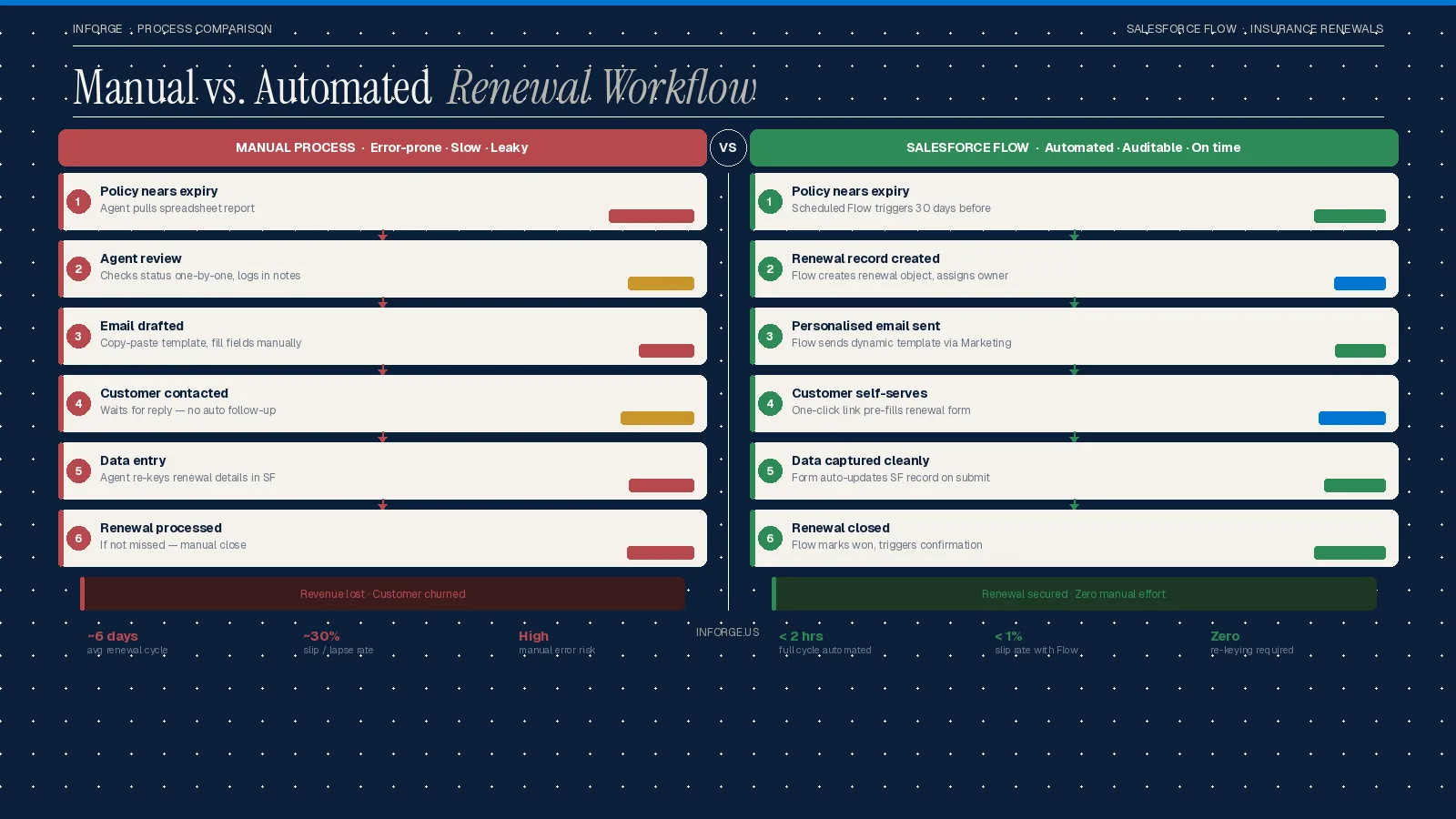
Manual renewal management is a structural problem, not a discipline problem. Without automation, tracking renewal dates, collecting documents, coordinating with carriers, and obtaining internal approvals becomes a genuinely risky manual process — and one where the cost of failure is a lapsed policy or a churned client.
According to McKinsey's Insurance Practice, agencies with automated renewal sequences retain 91% of clients versus 78% for manual renewal management — a 13-percentage-point retention lift. For a $10M book of business, that gap translates to hundreds of thousands in retained premium annually.
Insurance brokerages currently use three or more systems to engage clients, leading to fragmented experiences, siloed client data, and disconnected workflows. Salesforce Flow closes that gap by making the Policy object — not a person's inbox — the system of record for renewal actions.
Prerequisites Before You Build
Before opening Flow Builder, confirm these are in place:
A Policy custom object (or the FSC InsurancePolicy object if you're on Financial Services Cloud) with a `Policy_Expiry_Date__c` date field.
A formula field — `Days_Until_Expiry__c` — calculated as `Policy_Expiry_Date__c - TODAY()`. Set the return type to Number.
An email template for policyholder renewal notices (Classic or Lightning templates both work).
A Renewal_Status__c picklist field on the Policy object with values: Active, Renewal Pending, Renewed, Lapsed.
Default Workflow User configured under Setup > Process Automation Settings, so flow actions display under a named admin rather than Automated Process User.
If you're on Salesforce Financial Services Cloud, the InsurancePolicy object already supports quoting, issuance, renewals, and endorsements natively — which shortens this setup considerably.
Step 1: Create the Schedule-Triggered Flow
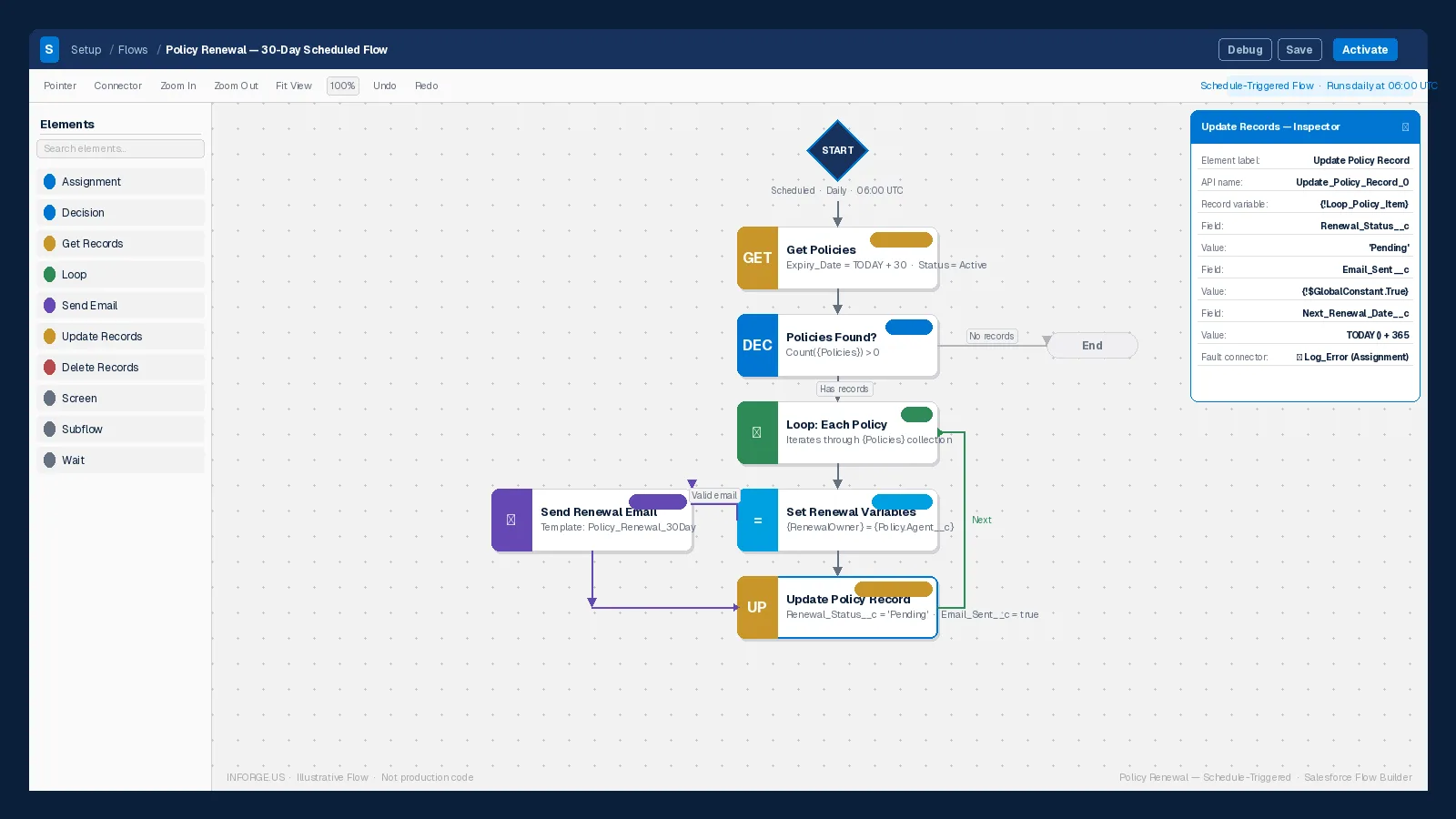
A schedule-triggered flow runs in the background at a specified time and at a repeated frequency — daily, weekly, or once — to perform actions on a batch of matching records. It runs independent of any record change, which is exactly what renewal automation requires. If no one touches the policy record, a record-triggered flow will never fire. A schedule-triggered flow fires regardless.
How to set it up:
1. Go to Setup > Flows > New Flow.
2. Select Schedule-Triggered Flow and click Create.
3. Set the Start Date to today, Start Time to a low-traffic window (e.g., 2:00 AM), and Frequency to Daily.
4. Under Object, select your Policy object.
5. Add a Filter Condition: `Days_Until_Expiry__c Equals 60` (you'll clone this flow for 30-day and 7-day triggers).
6. Click Done to save the start configuration.
Scheduled flows can be monitored and managed in Setup from the Scheduled Jobs page — use this to confirm your flow is queued and executing correctly after activation.
Step 2: Add a Get Records Element
The flow already filters records at the schedule start, but use a Get Records element to retrieve the full policy record — including related Account and Contact fields — so downstream actions have the data they need.
1. Click the + after the Start element and select Get Records.
2. Object: Policy (or InsurancePolicy).
3. Filter: `Days_Until_Expiry__c Equals 60`.
4. Select All Records and All Fields.
5. Store output in a record variable: `var_Policy`.
This element is your data foundation. Every subsequent action in the flow draws from `var_Policy`.
Step 3: Create a Task for the Account Owner
This is the action most admins miss. Don't just send an email — create a Salesforce Task so the renewal action enters the agent's activity queue and shows in reports.
1. Add a Create Records element after Get Records.
2. Object: Task.
3. Set the following fields:
- Subject: `'Policy Renewal – ' & {!var_Policy.Name}` (use a Text Formula resource)
- ActivityDate: `{!var_Policy.Policy_Expiry_Date__c} - 30` (due 30 days before expiry)
- OwnerId: `{!var_Policy.OwnerId}` (assigns to the policy owner)
- WhatId: `{!var_Policy.Id}` (links task to the policy record)
- Priority: High
- Status: Not Started
This ensures every renewal that's 60 days out has a tracked, assignable task in Salesforce — not just an email that gets buried.
Step 4: Send a Policyholder Email Alert
Use a Send Email action or an Email Alert (if you've pre-built one) to notify the policyholder.
1. Add an Action element after the Create Records element.
2. Action Type: Send Email (core action).
3. Set:
- To Address: `{!var_Policy.Contact.Email}`
- Subject: `Your [Policy Type] policy renews in 60 days`
- Body: Reference your pre-built email template using a Text Template resource.
4. Click Done.
For policyholders, receiving notice one month before expiry — with the rate for new coverage and clear instructions — is the standard that modern carriers deliver. Automating this in Flow means it happens on time, every time, without agent intervention.
Step 5: Update the Policy Renewal Status
1. Add an Update Records element after the email action.
2. Object: Policy (use the `{!var_Policy.Id}` to target the specific record).
3. Field to update: `Renewal_Status__c` → set to Renewal Pending.
This field update is what makes your renewal pipeline reportable. Build a Salesforce report filtered by `Renewal_Status__c = Renewal Pending` and your ops team has a live view of every policy in the renewal window — no spreadsheet required.
Step 6: Activate, Test, and Monitor
Before activating in production:
Debug the flow in Flow Builder using a known Policy record with a `Days_Until_Expiry__c` value of 60.
Confirm the Task was created, the email fired, and the status field updated correctly.
Check Setup > Scheduled Jobs to confirm the flow is queued post-activation.
Set up a Flow Error Email recipient under Setup > Process Automation Settings so you're alerted if the batch hits a governor limit.
Note: a schedule-triggered flow can query up to 50,000 records per run. For most mid-market insurers this is well within range — but if your Policy volume approaches that ceiling, segment your flows by line of business or policy type.
Clone the 60-day flow and repeat Steps 1–6 for 30-day and 7-day windows. Three flows, three distinct notification stages, full coverage of the renewal window.
Common Mistakes to Avoid
1. Using a Record-Triggered Flow instead of a Schedule-Triggered Flow.
Record-triggered flows only execute when a record is created, updated, or deleted. If no one touches the policy after it's activated, the flow never runs — and you miss the renewal window.
2. Not setting a Default Workflow User.
Without this, all flow actions show as running under Automated Process User, making audit trails and error diagnosis unnecessarily difficult.
3. Building one monolithic flow for all renewal stages.
Separate flows for 60-day, 30-day, and 7-day triggers are easier to debug, modify, and deactivate independently.
4. Skipping the status field update.
Without a `Renewal_Status__c` update, your ops team has no reportable pipeline view. The task and email are actions — the status field is the data.
Summary
Automating insurance policy renewals with Salesforce Flow is a straightforward admin build — one Schedule-Triggered Flow, a formula field, a task creation element, an email action, and a status update. Done right, it eliminates missed renewal windows, gives agents a trackable activity queue, and creates a reportable renewal pipeline inside Salesforce.
At Inforge, we build and deploy automation like this as part of full Salesforce implementations — delivered entirely through AI agents, not traditional project teams. If your renewal process still lives in spreadsheets or your Flow org is overdue for a rebuild, [INTERNAL LINK: anchor — "talk to the Inforge team", topic — Inforge contact or services page].
Frequently Asked Questions
Q: What's the difference between a Schedule-Triggered Flow and a Record-Triggered Flow for insurance renewals?
A: A Schedule-Triggered Flow runs at a defined time regardless of record activity — making it the correct choice for renewal automation. A Record-Triggered Flow only fires when a record is created, updated, or deleted, so a policy that hasn't been touched since issuance will never trigger it.
Q: Do I need Salesforce Financial Services Cloud to automate policy renewals?
A: No. You can build a fully functional renewal flow on Sales Cloud or Service Cloud using custom objects and formula fields. However, FSC's InsurancePolicy object provides a native data model for policy administration — including renewals and endorsements — which reduces the custom build significantly.
Q: How many renewal reminder flows should I build?
A: Best practice is three: 60-day, 30-day, and 7-day. Each targets a different action stage — initial notice, agent follow-up task escalation, and final alert — keeping the logic clean and independently manageable.
Q: What happens if the schedule-triggered flow hits the 50,000-record governor limit?
A: Salesforce sends a flow error email to the configured admin. To avoid this, add filter conditions to narrow the record batch — for example, filter by active policy status or specific lines of business — or split the flow by policy type.
Q: Is Salesforce Flow the right tool if we're still on Process Builder?
A: Salesforce ended support for Process Builder in December 2025. Any new renewal automation should be built in Flow. Existing Process Builder workflows for renewals should be migrated to Flow as a high priority — both for supportability and to access modern flow capabilities like scheduled paths and subflows.
